Consignment Sale POS Checklist
Set up sale-day checkout in a clean, simple order. This guide shows how to get devices ready, connect each register, train volunteers, turn on discounts, and close out cash without guesswork.
Pick Your Devices
Any laptop, tablet, or phone with a modern browser can serve as a register. You do not need to rent special hardware or install software before the sale starts.
That makes setup easier for shops that already have a few spare devices. Bring what you have, open the browser, and you are ready to go.
Start from the point of sale hub if you want the full checkout overview before sale day.
There is nothing to install. Each station opens the checkout in a browser and signs in, so you can mix and match whatever devices you already have on hand.
- Laptops for a fixed checkout table.
- Tablets for a roaming or overflow register.
- Phones as a backup when the line spikes.
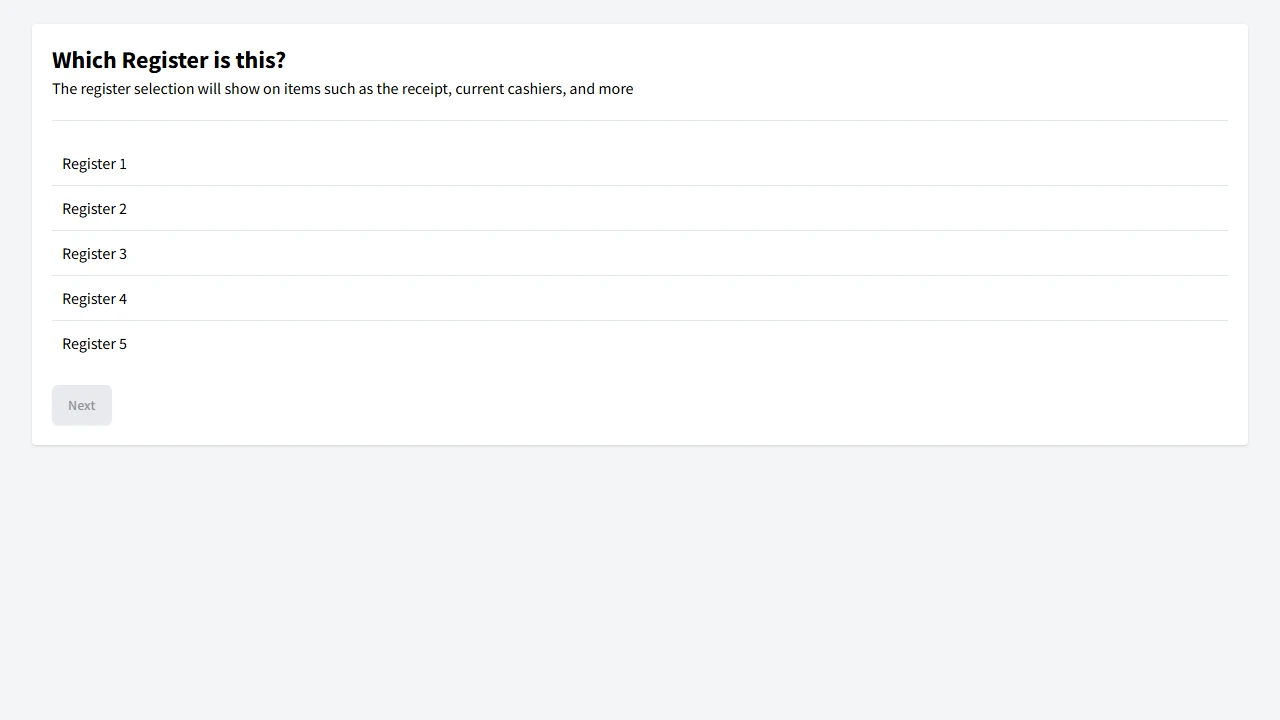
Choose the Sale and Register
At each station, sign in, pick the sale, and name the register. That keeps each transaction tied to the right station from the start.
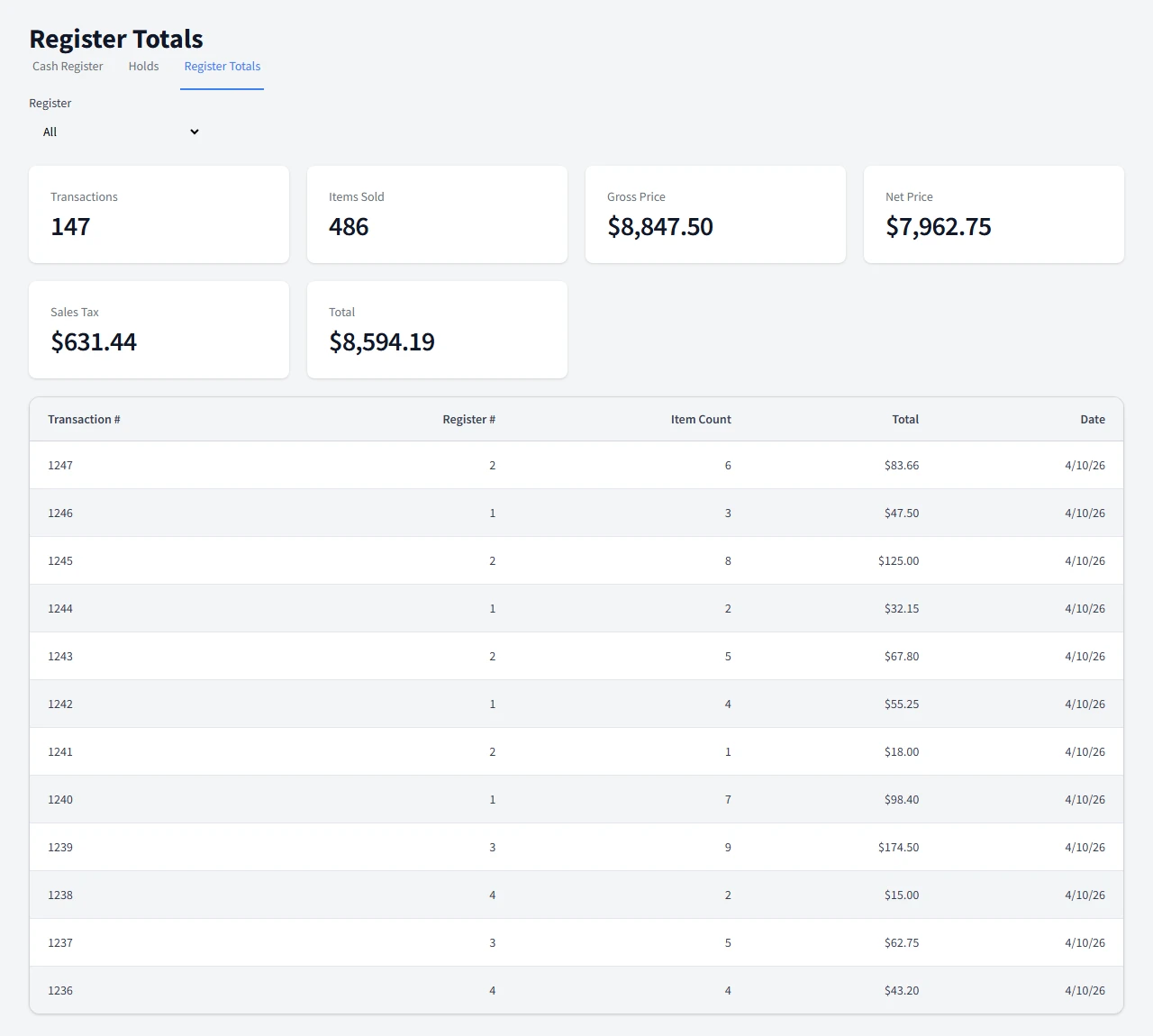
This is the step that makes later reporting and cash closeout much easier, because every register stays separated instead of blending into one shared line.
Set Up Barcode Scanning and Fast Checkout
Scan the printed barcode tags and the item and price populate instantly. The running total stays visible, so the line keeps moving and volunteers do not have to do math by hand.
If you want a deeper look at the checkout flow, the lightning checkout page shows how the scan and pay flow works.
- Scan the tag and watch the item appear right away.
- Keep the total in view for the shopper and the cashier.
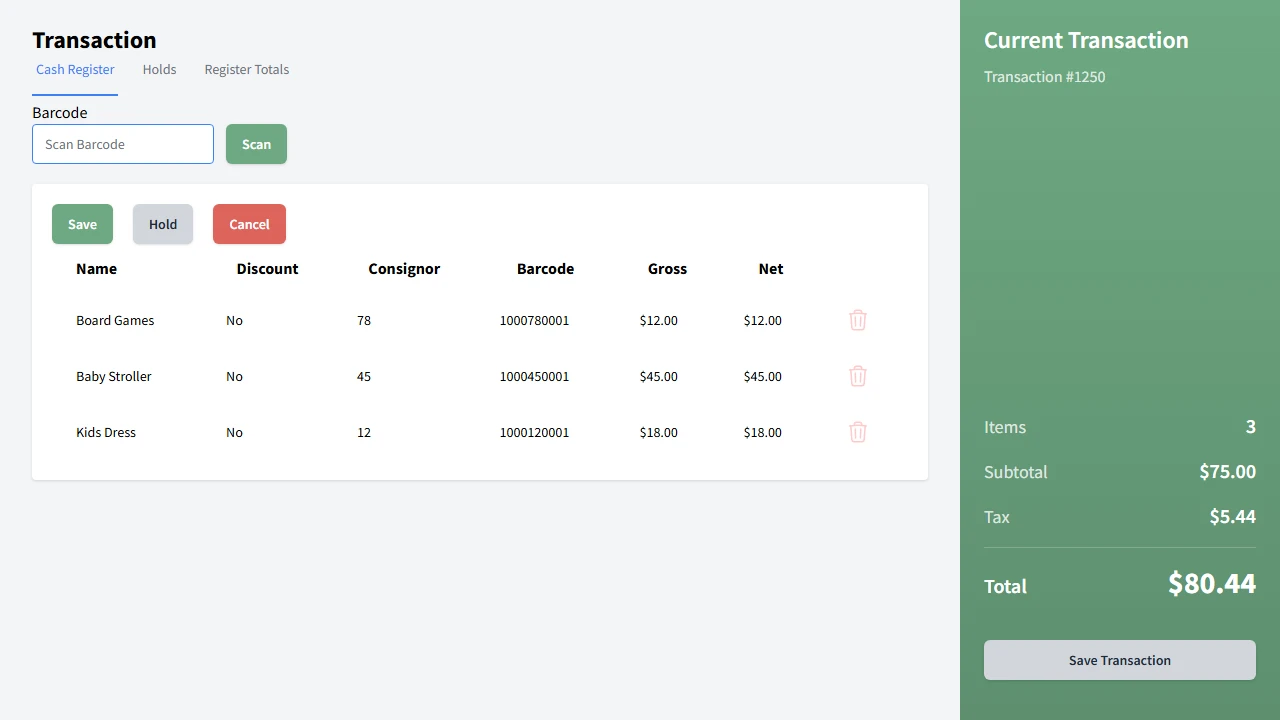
Every register you add signs in the same way and starts its own transaction list, so a second or third station is ready almost as fast as you can open the browser.
When the rush passes, close the extra registers back down. Their totals stay with the sale, so nothing is lost when a station steps away.
Open More Registers for the Rush
When the line grows, add another device, sign in, and you have another register in seconds. Each register runs independently and syncs back to the sale.
The setup is flexible enough to scale up when the crowd arrives and scale back down when things calm down.
Train Volunteers in Minutes
Large buttons, clear labels, and a simple flow make the checkout easy to learn. First-time volunteers can get comfortable quickly, even on a busy morning.
A short walk-through before doors open is usually enough. Show them where to scan, where to total, and how to finish a payment, then let the line do the rest.
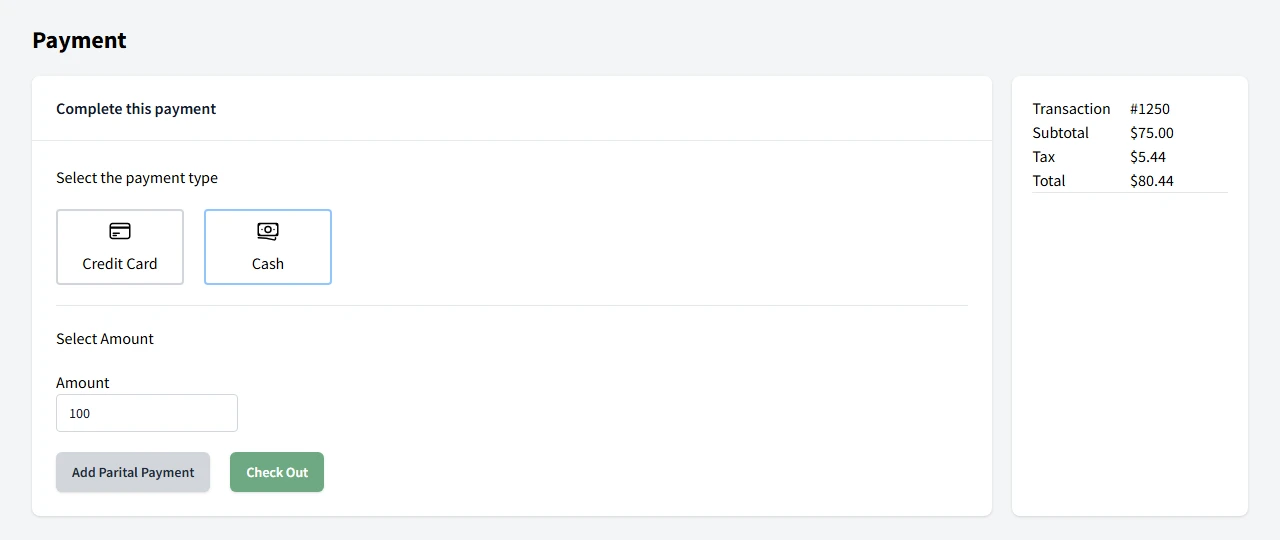
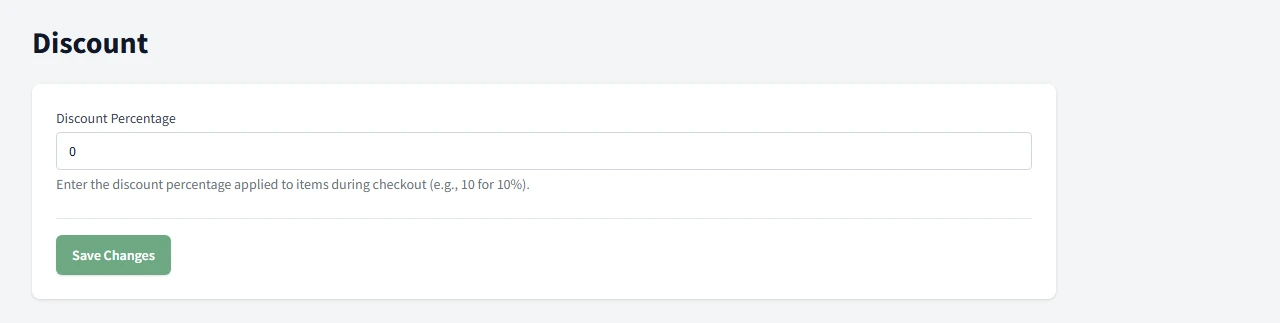
Configure Sale-Wide or Half-Price Discounts
Set a percentage once in admin and every register applies it automatically. That keeps shoppers from waiting while someone reprices tags by hand.
It is a clean way to run a half-price day or any other sale-wide markdown without slowing down checkout.
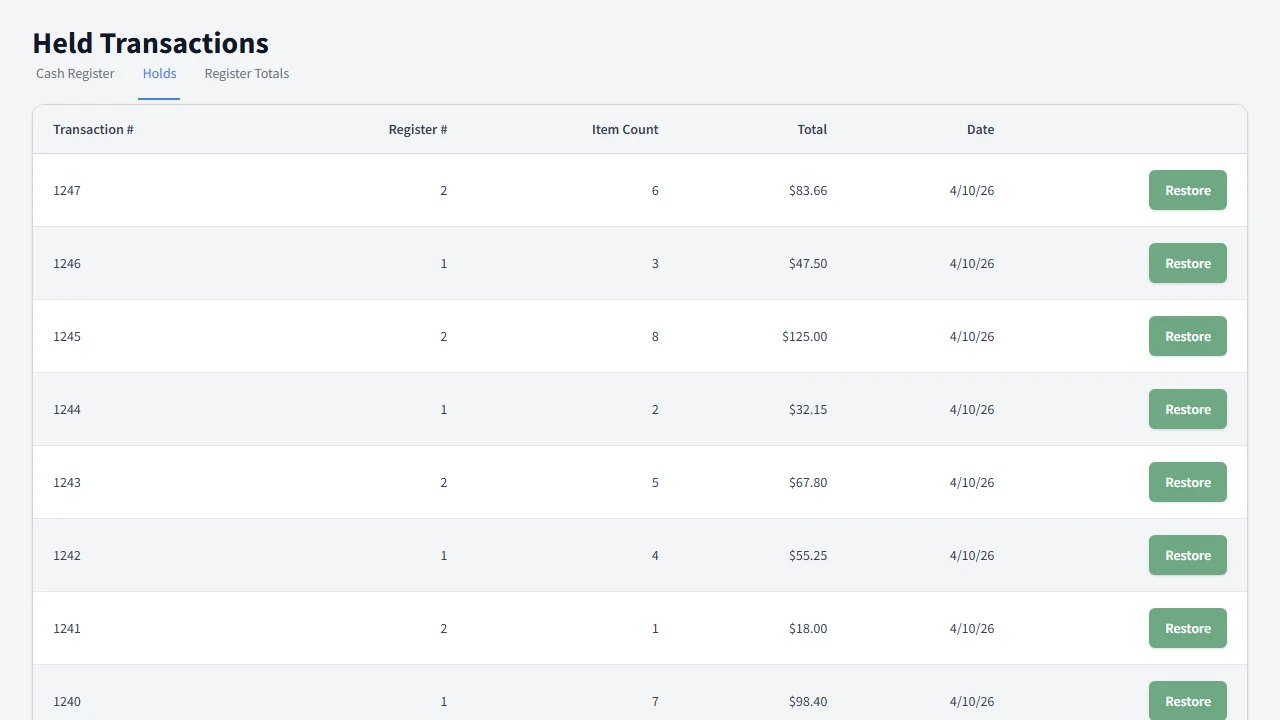
Use Hold and Resume
If a shopper steps away, park the transaction and pick it back up later. Nothing gets lost, and the next shopper can keep moving through the line.
It is a simple safety net for the moments when someone realizes they need one more item or one more minute.
See the hold and resume feature if you want the full workflow.
Reconcile Cash at Close
Compare expected totals with what was counted in the drawer. The variance tracking gives you a clean audit trail for each register.
That final review makes it easier to close the day with confidence and hand off a clear record for the next shift.
For a closer look at balancing registers, visit cash reconciliation.
What's Next?
Once checkout is ready, the next guide shows how to automate consignor payouts after the sale closes.
Next: Automate Consignor PayoutsCommon Questions
What hardware do I need for the POS checklist?
Any laptop, tablet, or phone with a modern browser can be used as a register. No special hardware rental or installation is required.
Can volunteers run the checkout without training?
Yes. The checkout flow uses large buttons, clear labels, and a simple scan, total, payment flow so first-time volunteers can learn it quickly.
How many registers can I open?
You can add another device whenever the line grows. Each register runs independently and syncs back to the sale.
Does the POS need internet access?
It is cloud-based and browser-based, so each register signs in from the web.
How do sale-wide discounts work?
Set a discount percentage once in admin and every register applies it automatically at checkout until you turn it off.
Need a Hand?
See how the POS setup works in the browser before your next sale opens.