Sale setup help
How Categories and Sizes Work
Categories let consignors sort and tag their items, and each category carries the sizes a consignor must choose from when adding an item. Here is how they behave when you add, rename, or delete them.
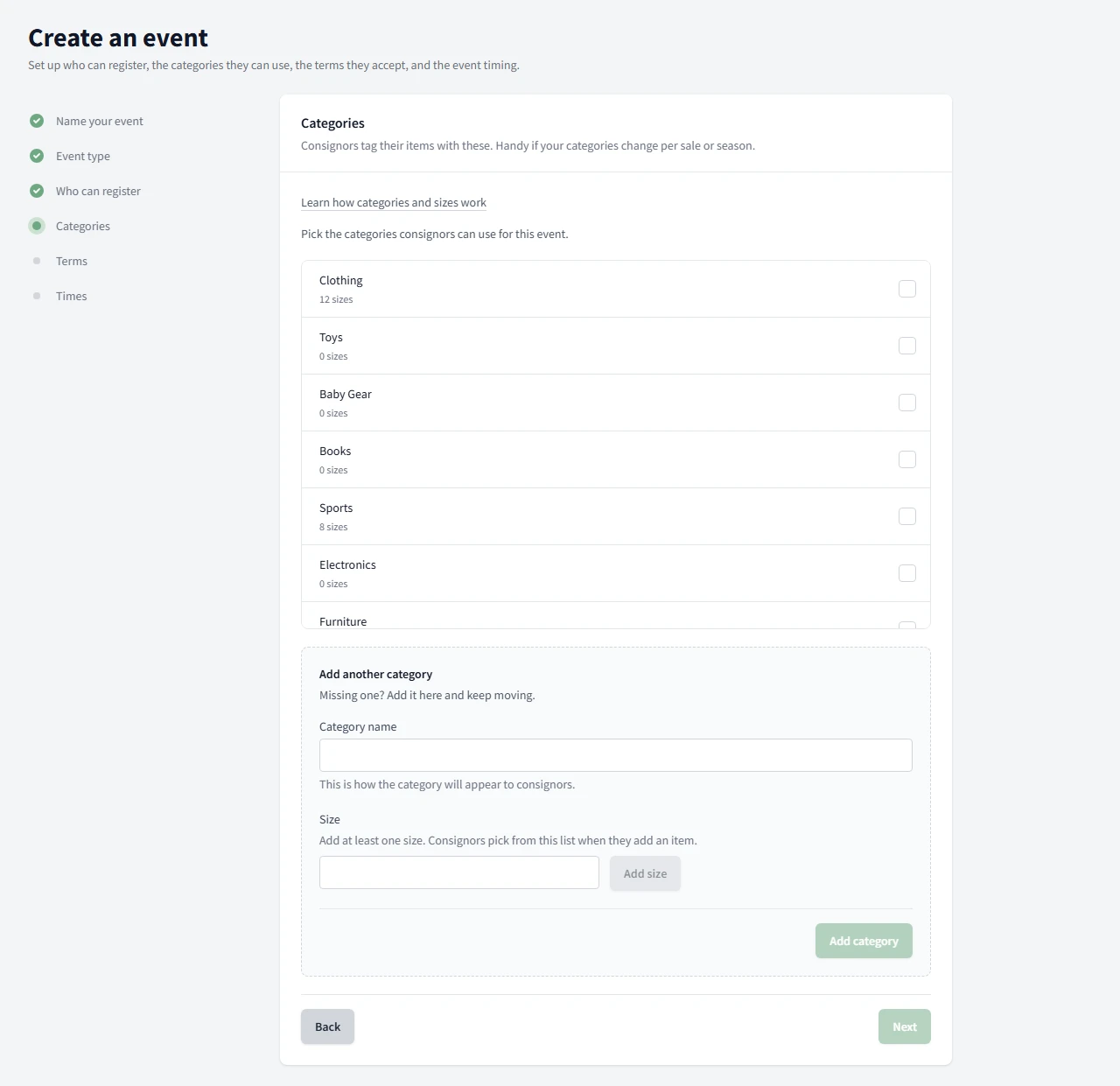
Categories are the labels your consignors use to sort and tag items, and each category carries the list of sizes a consignor picks from when adding an item. You keep one master list of categories, and every event chooses which of those categories it offers.
What a category is
A category is a bucket like Clothing, Toys, or Books. On its own it is simple, but it does two jobs:
- It gives consignors a way to label each item they add.
- It holds the set of sizes a consignor can choose for an item in that category.
Your categories live in one master list for your whole account. Creating a category does not attach it to any event by itself. Think of the master list as your pantry and each event as a recipe that picks a few ingredients from it.
Why every category needs a size
When a consignor adds an item, Size is a required field, and the size choices come straight from the category they picked. A category with no sizes would leave a consignor stuck with nothing to choose and unable to finish the item.
That is why the app will not let you save a category without at least one size. You will see the save button stay disabled until you add one. It is a small guard that saves you a support message later from a consignor who cannot submit their item.
Sizes can be anything that fits your sale. Use simple sets like Small, Medium, and Large, use numeric ranges, or use a single catch-all like One Size. You decide.
Two places to add a category
You can create a category in either of these places, and both add it to the same master list:
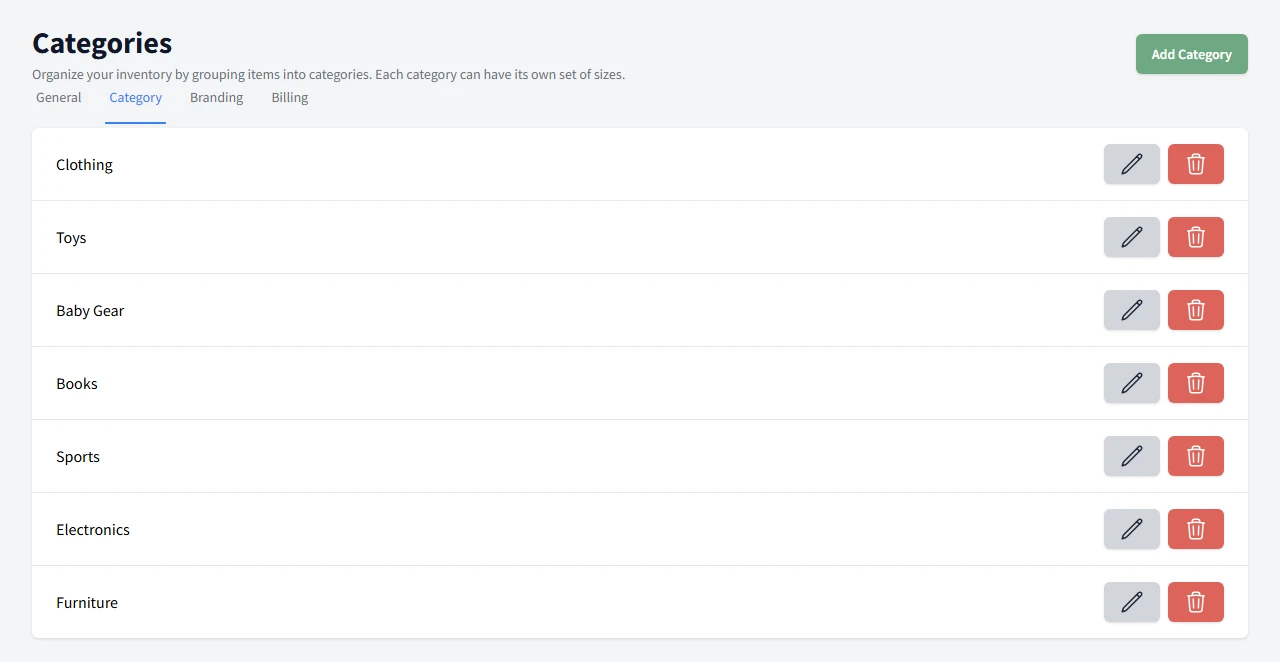
- In Settings. Open Settings and then Categories to manage your master list any time. Give the category a name, add at least one size, and save.
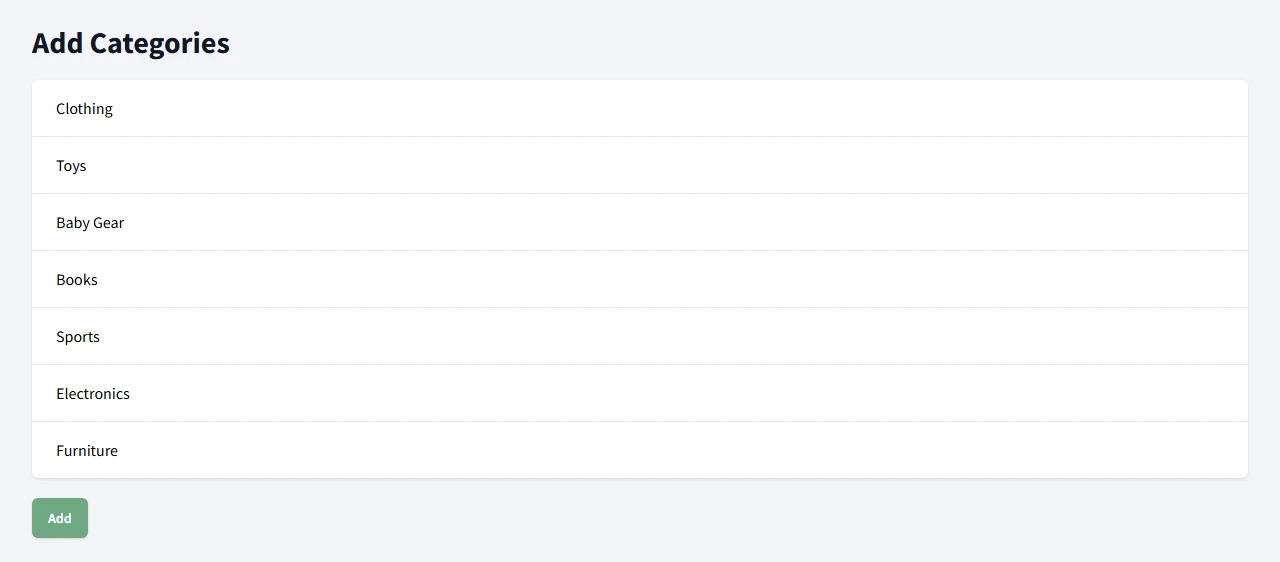
- Inline while setting up an event. During event setup there is a Categories step. If your list is empty it prompts you to add your first category right there. If you already have categories, you can still add one on the spot without leaving the flow.
New accounts start with zero categories, so the inline add exists to keep event setup moving instead of sending you away to Settings and back.
Choosing which categories an event offers
Adding a category to your master list is only half the job. Each event has its own list of available categories, and consignors only see the categories that the event they are registering under actually offers.
During event setup, the Categories step shows your master list and you tap the ones this event should offer. You must pick at least one to continue. A category you do not select is still in your master list, it just is not offered by that event.
Getting a category onto an event people are already using
This is the one that surprises organizers most. If you create a category in Settings after an event is already set up, that event does not pick it up automatically. To offer the new category on an existing event:
- Open the event.
- Go to its Categories.
- Add the new category to the event and save.
Until you do that, consignors on that event will not see the new category, no matter how it looks in your Settings list.
What trips people up
These behaviors are all normal and by design, but they catch people off guard. Here is what actually happens and what to do about it.
Renaming a category does not rename items already created
When a consignor adds an item, the category name is copied onto that item like a printed label. Renaming the category later changes the choices for new items, not the labels already printed.
Example. A consignor tags three items under "Toys." Next week you rename that category to "Toys and Games." Their three existing items still read "Toys." Any item added after the change reads "Toys and Games." Both sets of items are fine and stay in the sale. If you want everything to match, that is the tradeoff to know about before you rename mid-sale.
Deleting a category does not delete or change items in it
Deleting a category removes it from the list of choices for new items. It does not touch items a consignor already created in that category. Those items keep their label and stay in the sale.
Example. You delete "Books." A consignor who already added two items under "Books" still has those two items, still labeled "Books." What changed is that no one can choose "Books" for a new item anymore, because it is gone from the master list and from every event that offered it.
There is one thing to watch. If you delete the last category an event was offering, consignors on that event open the item form to an empty category list and cannot add anything. If that happens, add a category back to the event using the steps above.
Changing sizes needs a refresh to show up
The item form loads its category and size choices once, at the moment it opens. There is no live update while it is open.
Example. A category lists Small, Medium, and Large. You add X-Large. A consignor who already had the item form open will not see X-Large until they refresh the page. The same is true if you remove a size. Once they reload, the new list appears. So if a consignor says a change is not showing, the first thing to try is a refresh.
Where to go next
If you want the guided, click-by-click path, read Set Up Events.
Need the full help set? Return to Setting Up Your Sale.
Common Questions
How do I add a category?
You can add a category two ways. Open Settings and then Categories to manage your master list, or add one inline while you are setting up an event. Either way you give it a name and at least one size, then save.
Do I have to create categories before I start setting up an event?
No. You can add categories ahead of time in Settings, or add them inline during event setup and keep moving. New accounts start with no categories, so the inline add is there so the setup does not stall.
A consignor cannot pick a size when adding an item. Why?
Size is a required field on the item form and the choices come from the category they picked. If a category had no sizes there would be nothing to choose, which is why the app makes you add at least one size to every category before you can save it.
I added a category in Settings but my consignor still cannot pick it. Why?
A category in your master list is not automatically offered by an event. Each event has its own list of available categories. Open the event, go to its Categories, and add the category there. Then have the consignor refresh the item form so the new choice appears.
I renamed a category. Why do items a consignor already added still show the old name?
The category name is copied onto each item at the moment it is created, like a printed label. Renaming the category updates the choices for new items only. Items already created keep the name they were given. This is expected and does not break anything.
I deleted a category. What happens to items already in it?
Nothing happens to those items. They keep the category label they were created with and stay in the sale. Deleting a category only removes it from the list of choices for new items. If you delete the last category an event offered, consignors on that event will have nothing to pick until you add a category back to the event.
I changed a category's sizes. Why can't my consignor choose the new size?
The item form loads its size choices once when it opens. A consignor who already had the form open needs to refresh the page to see sizes you just added or removed. Existing items are not changed by a size edit.