
Sale setup help
Consign, Volunteer, or Both: Registration Options Explained
Every event can offer Consign + Volunteer, Consign + Donate, Consign Only, or Volunteer Only. Here is what each option lets someone do, when to turn it on, and what changing it later does to people who already registered.
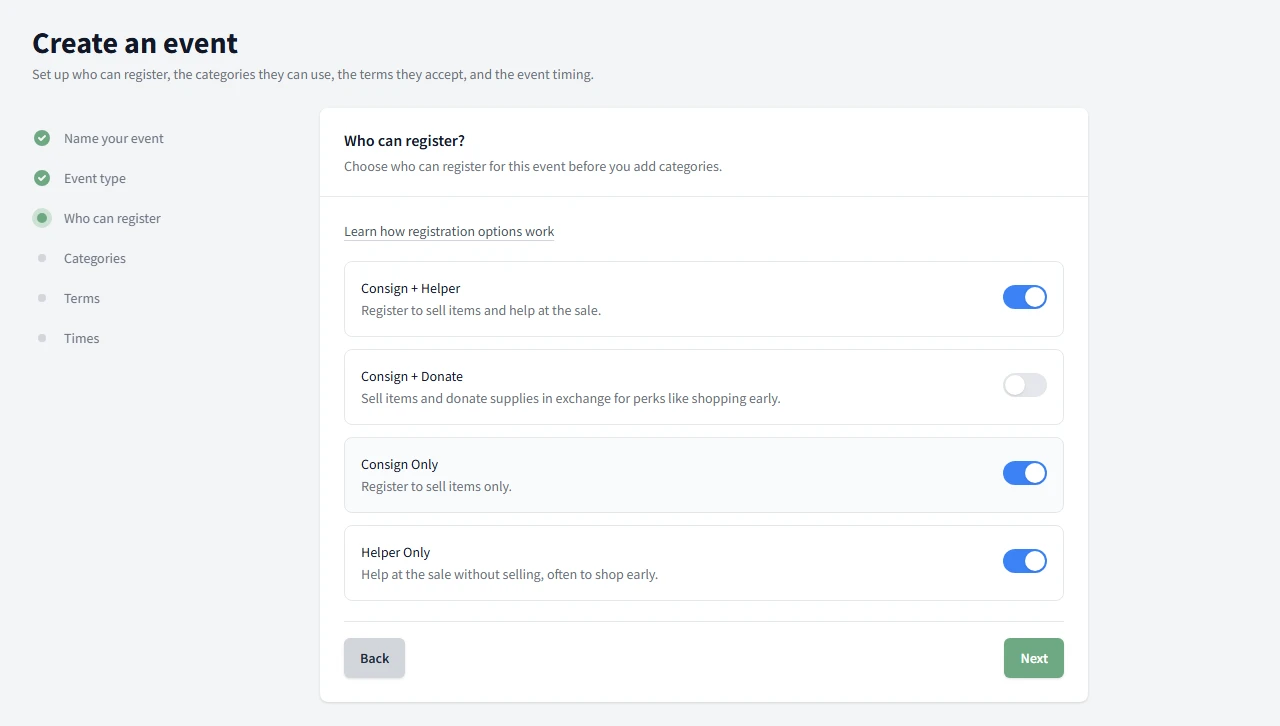
Every event offers a set of registration options that decide how people can sign up. The four options are Consign + Volunteer, Consign + Donate, Consign Only, and Volunteer Only. If your sale uses a different word for the volunteer role, the app swaps your custom word into these titles, so you might see something like Consign + Helper or Helper Only.
Consign + Volunteer
Use this when someone can register to sell items and also help at the sale. It is the flexible choice when you want consignors to be able to volunteer too.
Consign + Donate
Use this when your sale offers a donation path alongside selling. The app describes it as selling items and donating supplies in exchange for perks like shopping early.
Consign Only
Use this when the person should register to sell items only, with no volunteer work attached to the registration.
Volunteer Only
Use this when someone should help at the sale without selling anything. This is the path for helper-only roles and early-shopping perks.
Setting the options on an event
When you set up a new event, three options start turned on for you: Consign Only, Volunteer Only, and Consign + Volunteer. Consign + Donate starts off. You can change the mix before you save, and the setup will not let you continue with every option turned off, so a brand-new event always has at least one way to register.
You can change the same options later on the event's edit screen. That is where the rules below come into play.
What trips people up
The options control who can sign up from now on. They do not reach back and rewrite the people who already signed up. Knowing that saves a lot of worry when you edit an event mid-sale.
Turning an option off only affects new registrations
Turning an option off stops new people from choosing it. It does not cancel, change, or move anyone who already registered under that option.
Example. Ten people register as Consign + Volunteer. Later you turn Consign + Volunteer off on the event. All ten keep their registrations exactly as they were. What changes is that the next person to open the event no longer sees Consign + Volunteer as a choice. If you want to remove or change an existing registration, you have to handle that registration directly. Flipping the option off will not do it for you.
Turning every option off closes new registration
Unlike the initial setup, the edit screen will let you turn all four options off. If you do, the event still exists and everyone already registered keeps their registration, but a new visitor reaches the event and finds nothing to choose, so no one new can sign up.
Example. You reach your volunteer cap and want to stop new sign-ups for a day. Turning every option off is one way to pause registration without deleting the event. To reopen it, turn at least one option back on.
Where to go next
If you want the guided setup path, read Set Up Volunteers.
Need the full help set? Return to Setting Up Your Sale.
Common Questions
Which options should I turn on?
If your sale lets consignors volunteer too, keep Consign + Volunteer on. If you offer a donation path, turn on Consign + Donate. Keep Consign Only for people who just want to sell, and Volunteer Only for helpers who are not selling. Turn on whatever paths your sale actually offers and leave the rest off.
I turned every option off. What happens?
New visitors reach the event and find no way to sign up, so no one new can register until you turn at least one option back on. People who already registered are not affected.
If I turn an option off, does it cancel people who already registered under it?
No. Turning an option off only limits new registrations from that point on. Anyone who already registered under that option keeps their registration exactly as it was. It is not cancelled, changed, or moved.
Can I change these options after the event is created?
Yes. The same options appear on the event's edit screen, so you can turn them on or off at any time. Changes apply to new registrations going forward.
Does the word Volunteer always stay the same?
No. If your sale uses a different word for the volunteer role, like Helper, the app shows your custom word in these option titles, so you may see Consign + Helper or Helper Only.